Overview
This video shows how to create and manage video clips from your interviews in Quallie.Ai. You'll learn how to highlight transcript text to create clips, edit and refine them, anonymise sensitive content, and organise clips into folders for easy access.
1. Highlight text to clip
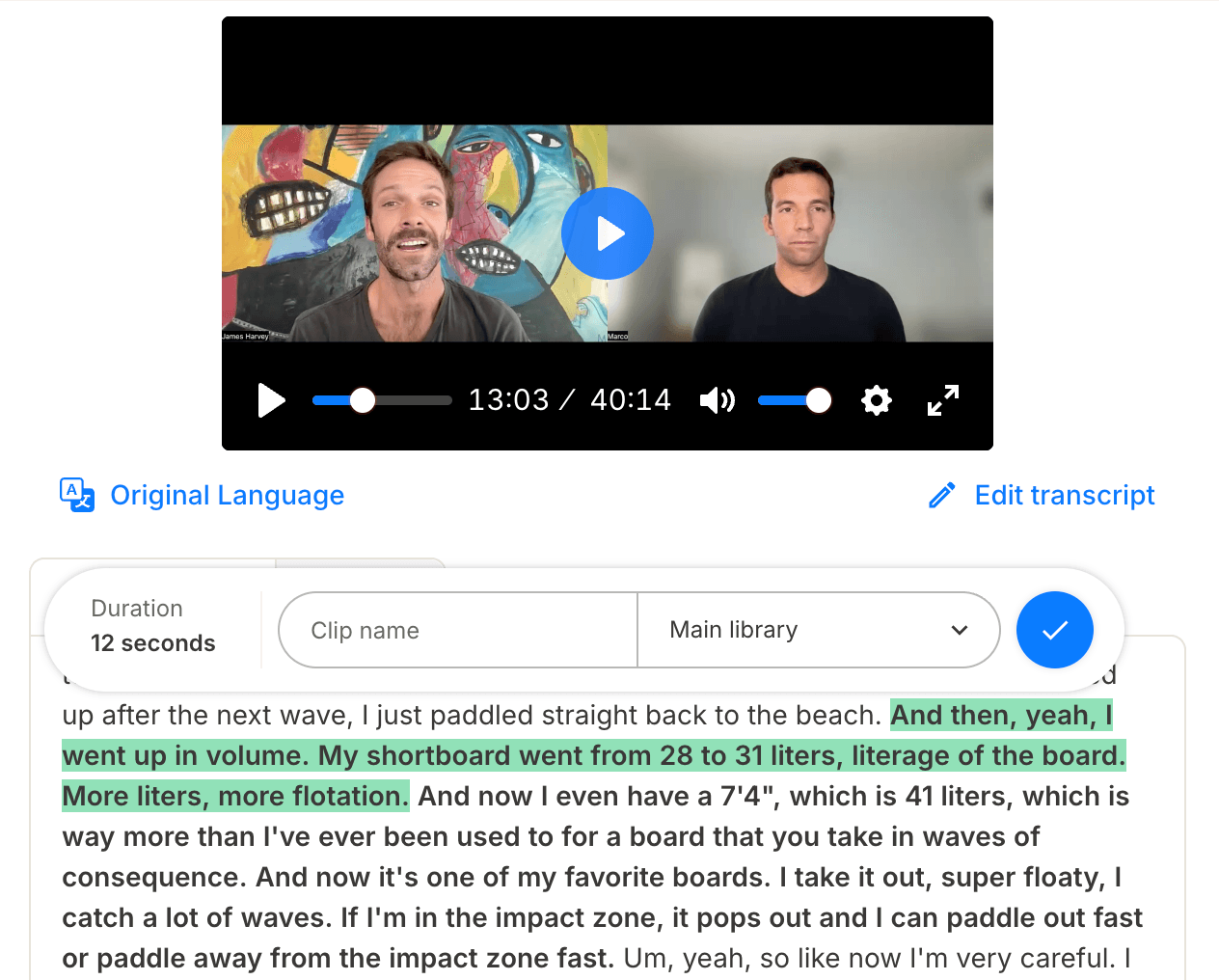
Highlight any section of text, give it a name, and choose in which folder to save it. This instantly creates a clip linked to that specific moment in the video. Clips are saved both as highlights in the transcript view and in the Clips tab.
2. Organise clips
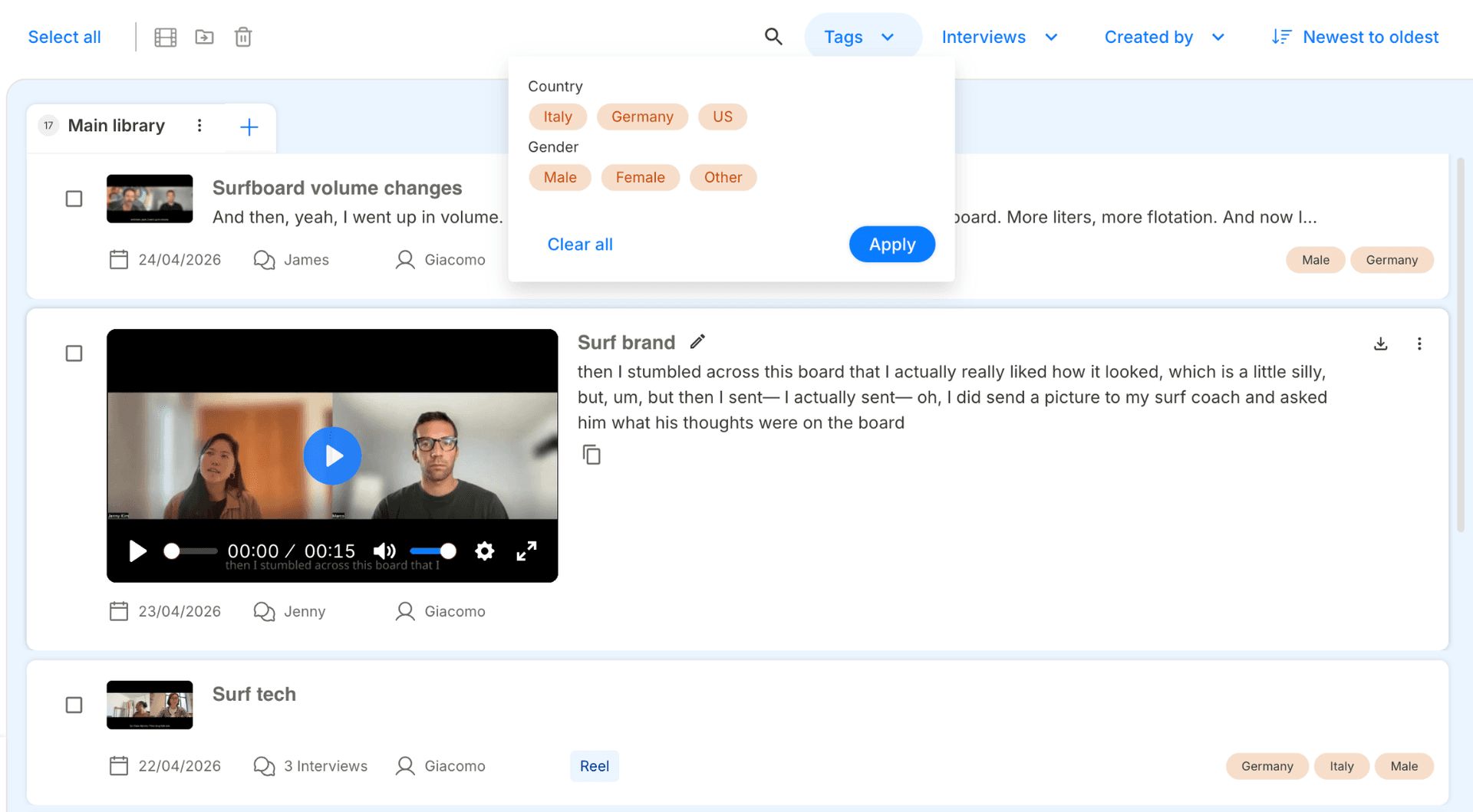
Keep your clips organised in the Clips tab. Create custom tabs and filter content by tags, interviews, or creator — making it easy to manage large volumes of clips and quickly find exactly what you need.
3. Trim
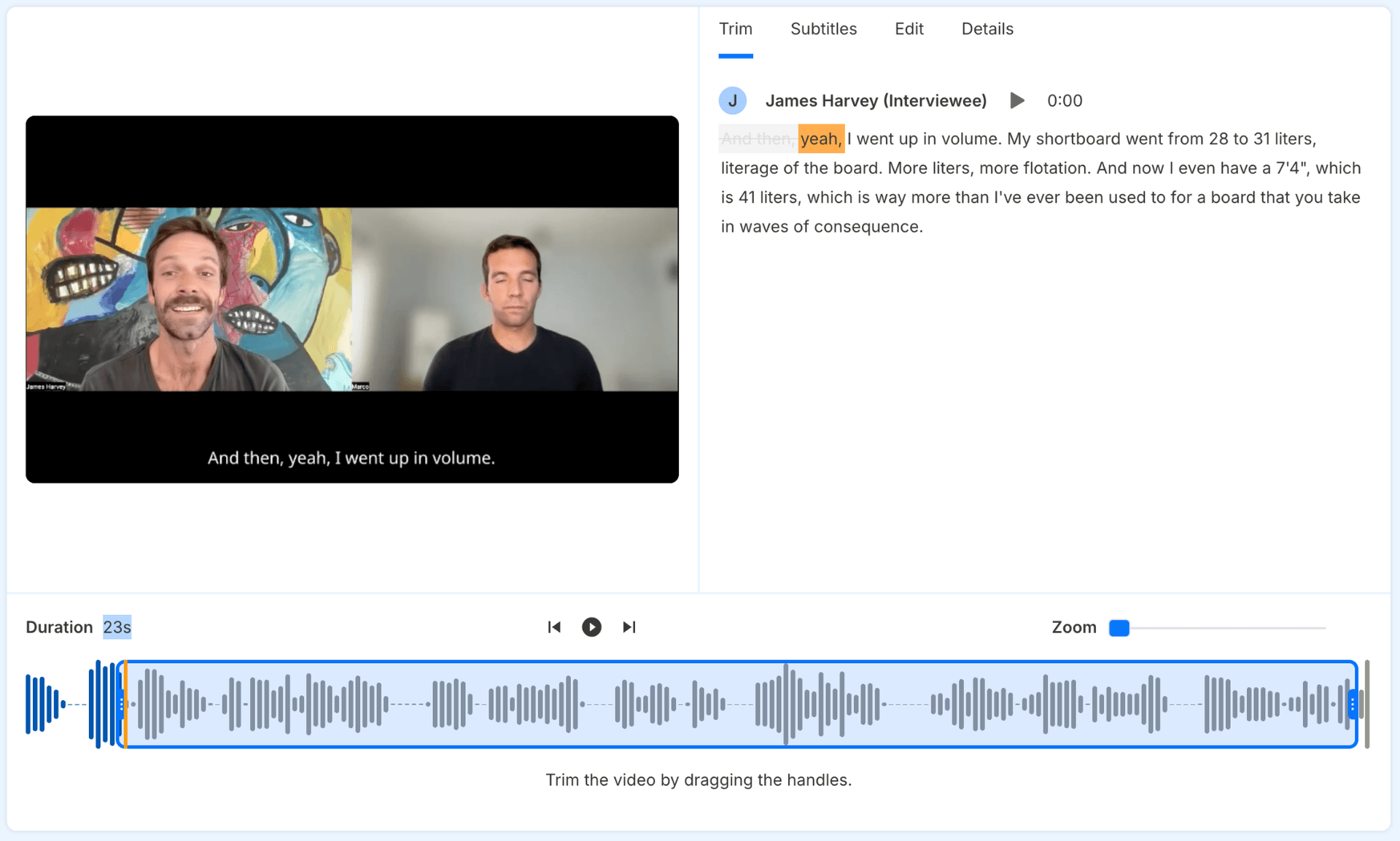
Select a clip and open the Edit Clip view. From here you can trim your clip to keep only the parts you need. The transcript view shows exactly which sections are being removed, so edits remain precise and easy to follow.
4. Edit subtitles
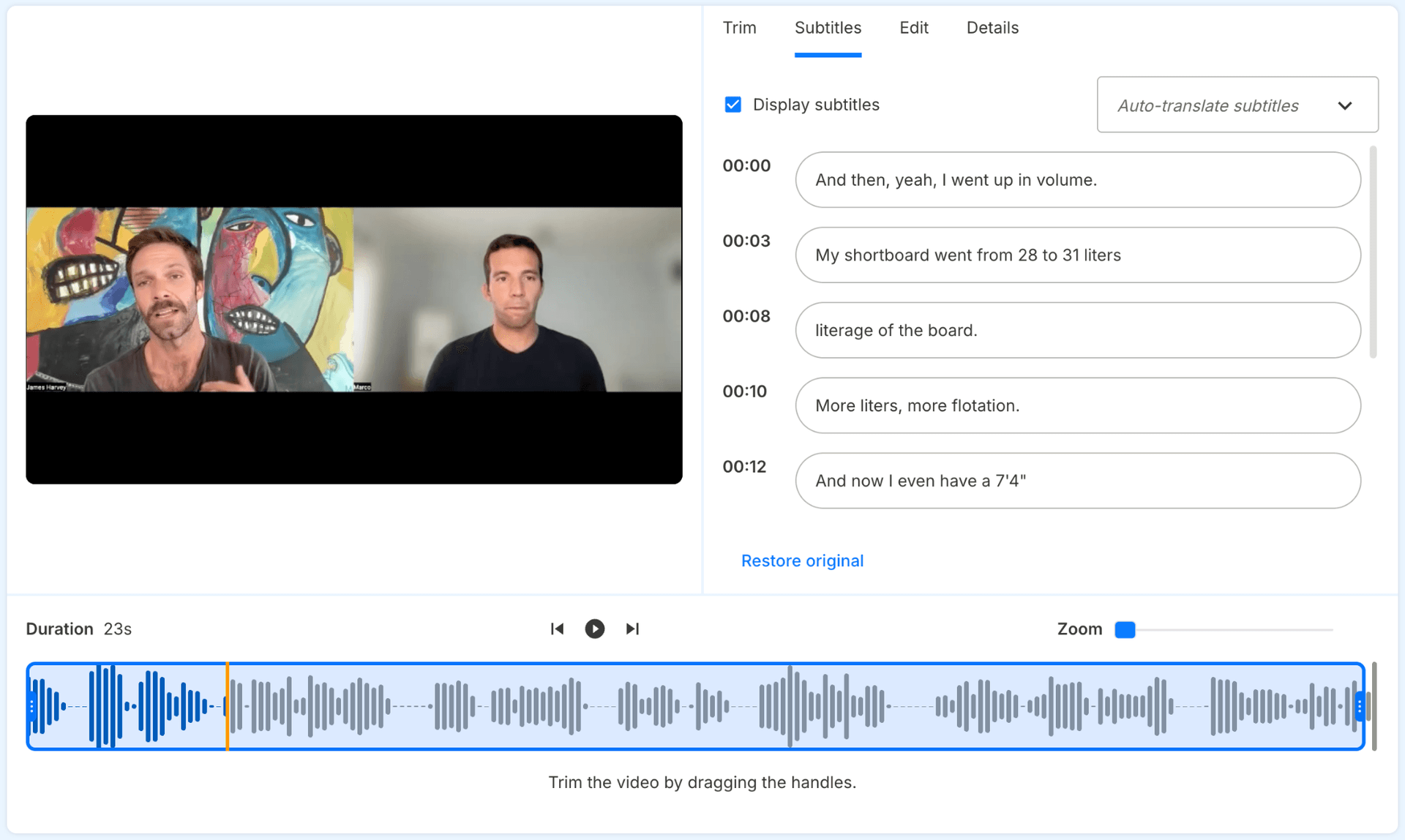
In the same Edit Clip view, you can refine the subtitles frame by frame and even translate them with a single click.
5. Remove silence / Anonymise
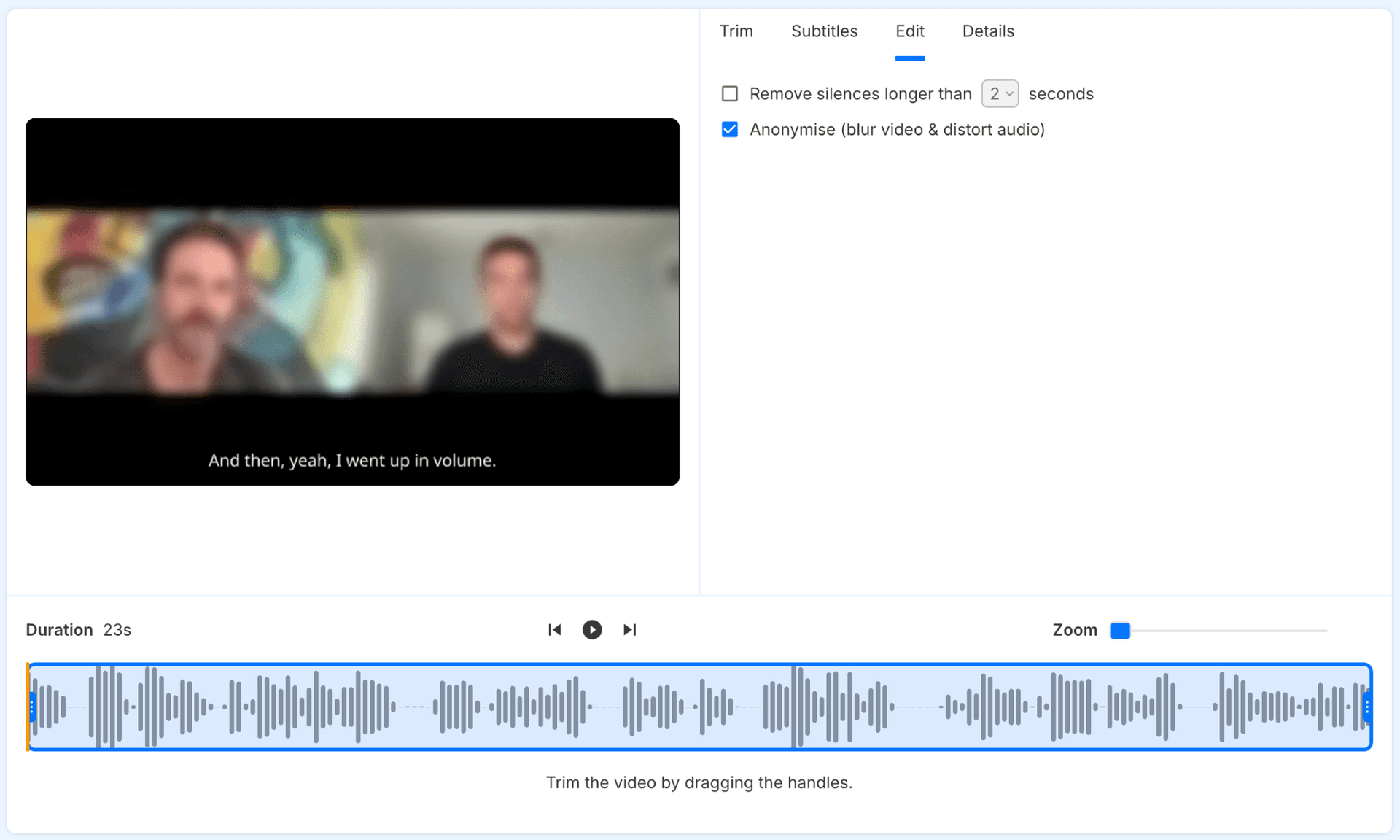
In the same Edit Clip view, you can automatically remove silences for smoother playback. If your clips include sensitive information, you can blur faces or distort audio to protect participant privacy.
6. Create reels
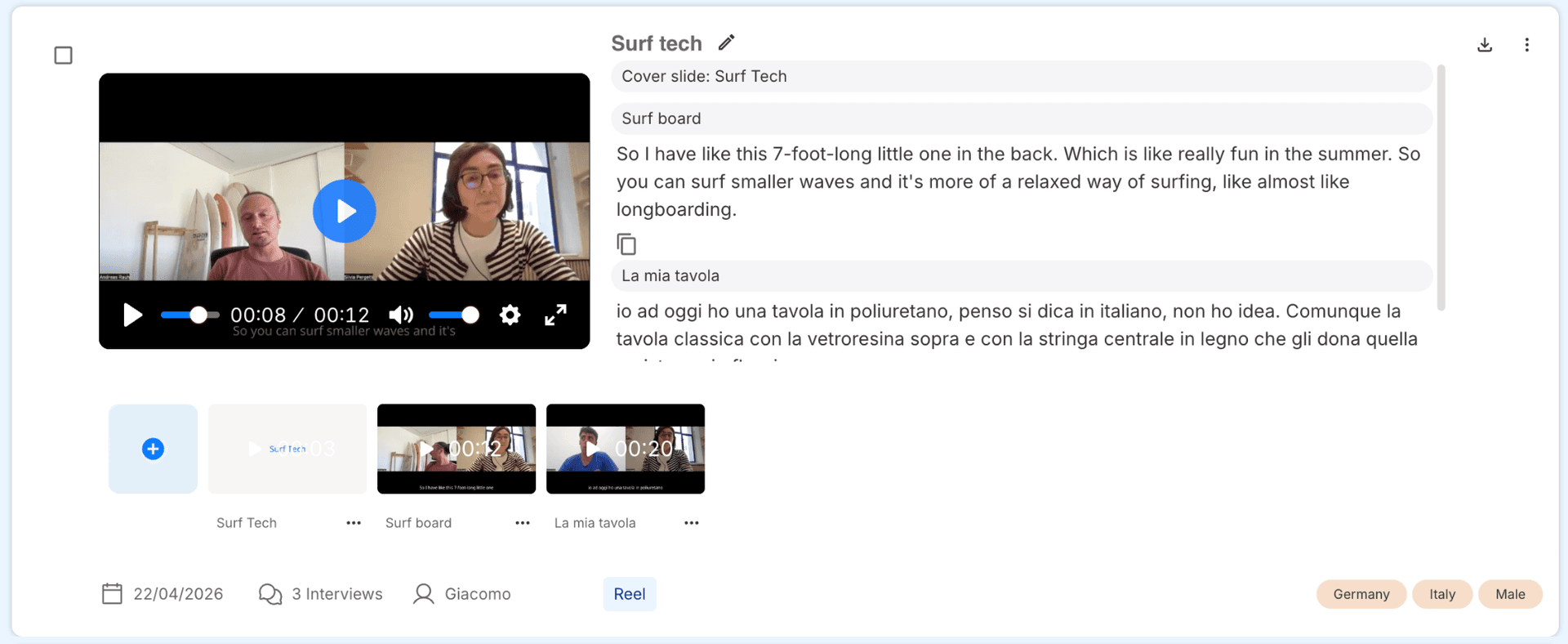
Turn your clips into compelling video reels in just a few steps. Select the clips you want to include, organise them under a custom title, and personalise your reel with a cover slide. You can continue adding clips over time, and once ready, download your reel to use in presentations, reports, or stakeholder shareouts.