Overview
This section shows how to prepare your research data in Quallie.Ai. You'll learn how to upload and transcribe your interviews, assign and review speakers, edit and translate transcripts, and organise your materials with tags and supporting files — all in a few quick steps.
1. Upload material
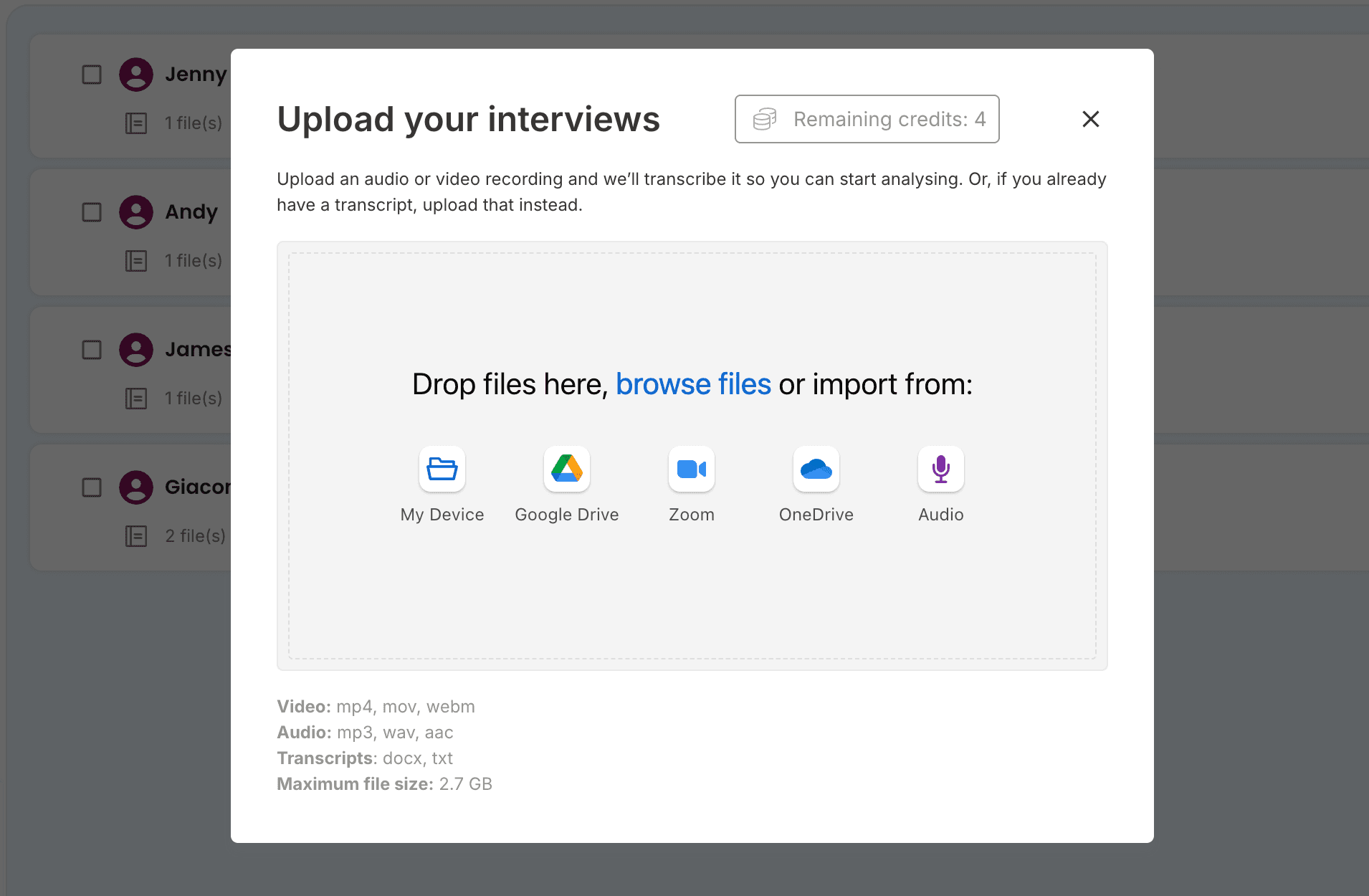
Start by selecting your project and uploading your research material. You can import files directly from your device or connect tools like Google Drive, Zoom, or OneDrive. Once uploaded, Quallie.Ai automatically begins transcribing your interviews, so you can move quickly from data collection to analysis.
2. Assign speakers
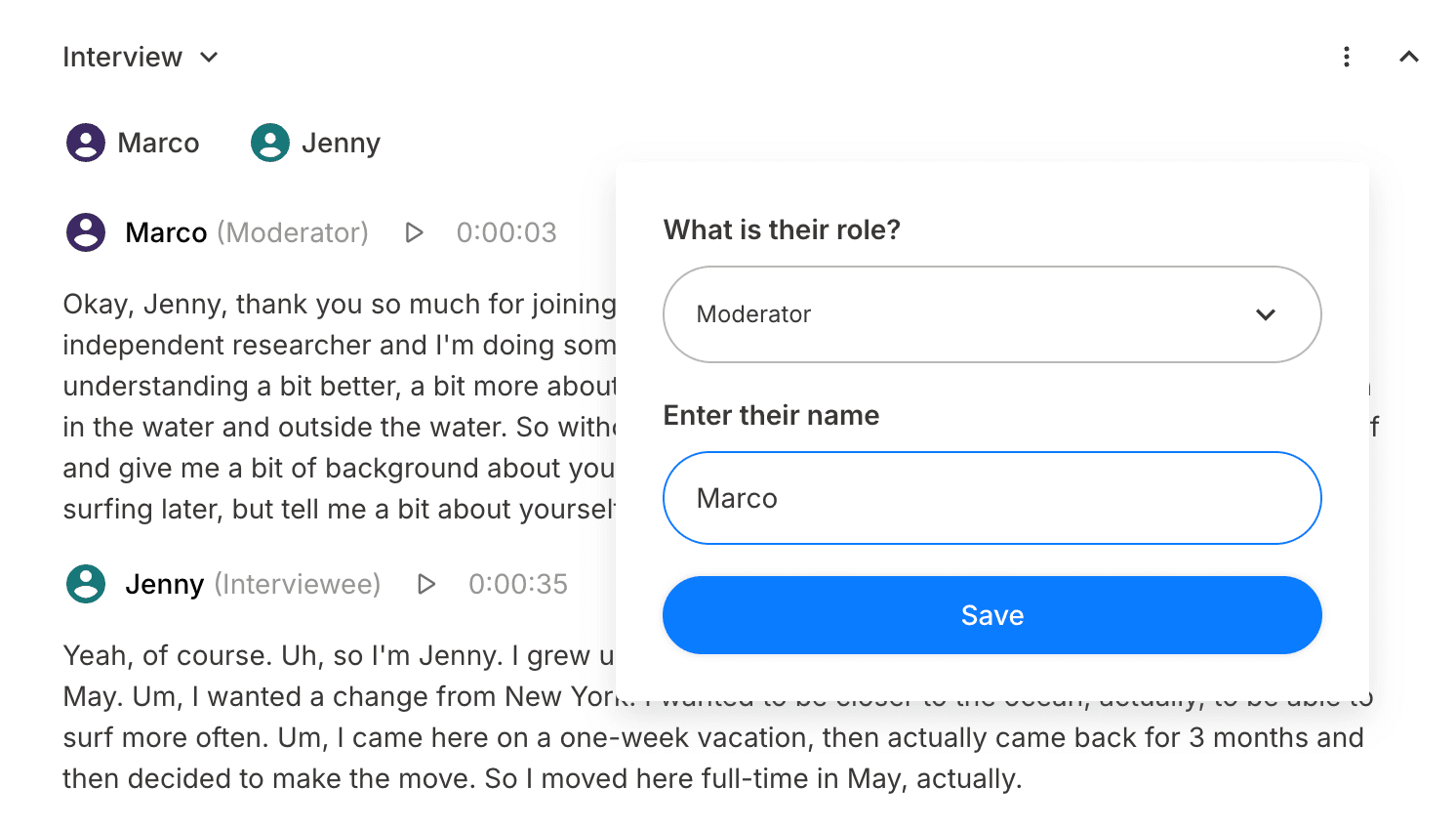
After transcription, Quallie.Ai automatically identifies speakers and labels them as interviewee or moderator. You can easily review and adjust these labels at any time to ensure accuracy and clarity across your transcripts.
3. Edit the transcript
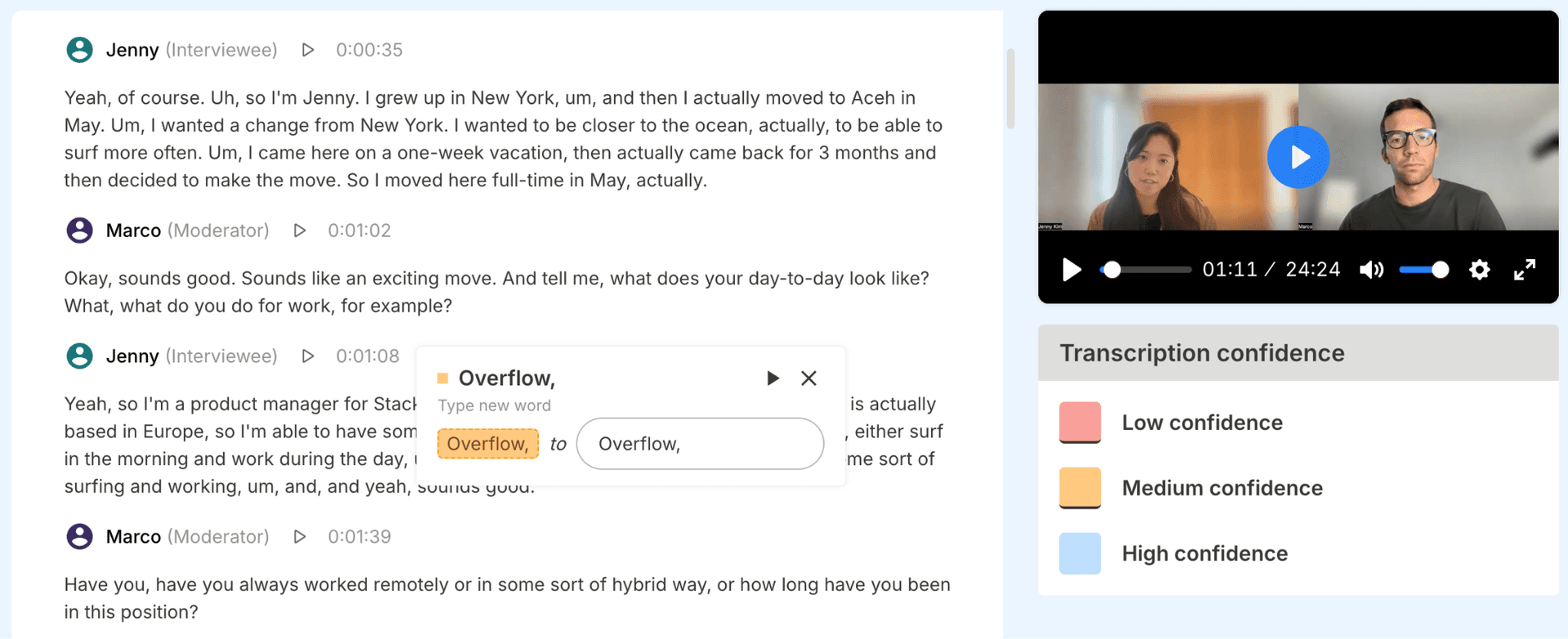
Refine your transcripts using the built-in editing tools. Words are highlighted based on confidence levels, allowing you to quickly spot and correct any inaccuracies by listening back to the original audio. This ensures your data is reliable and ready for analysis.
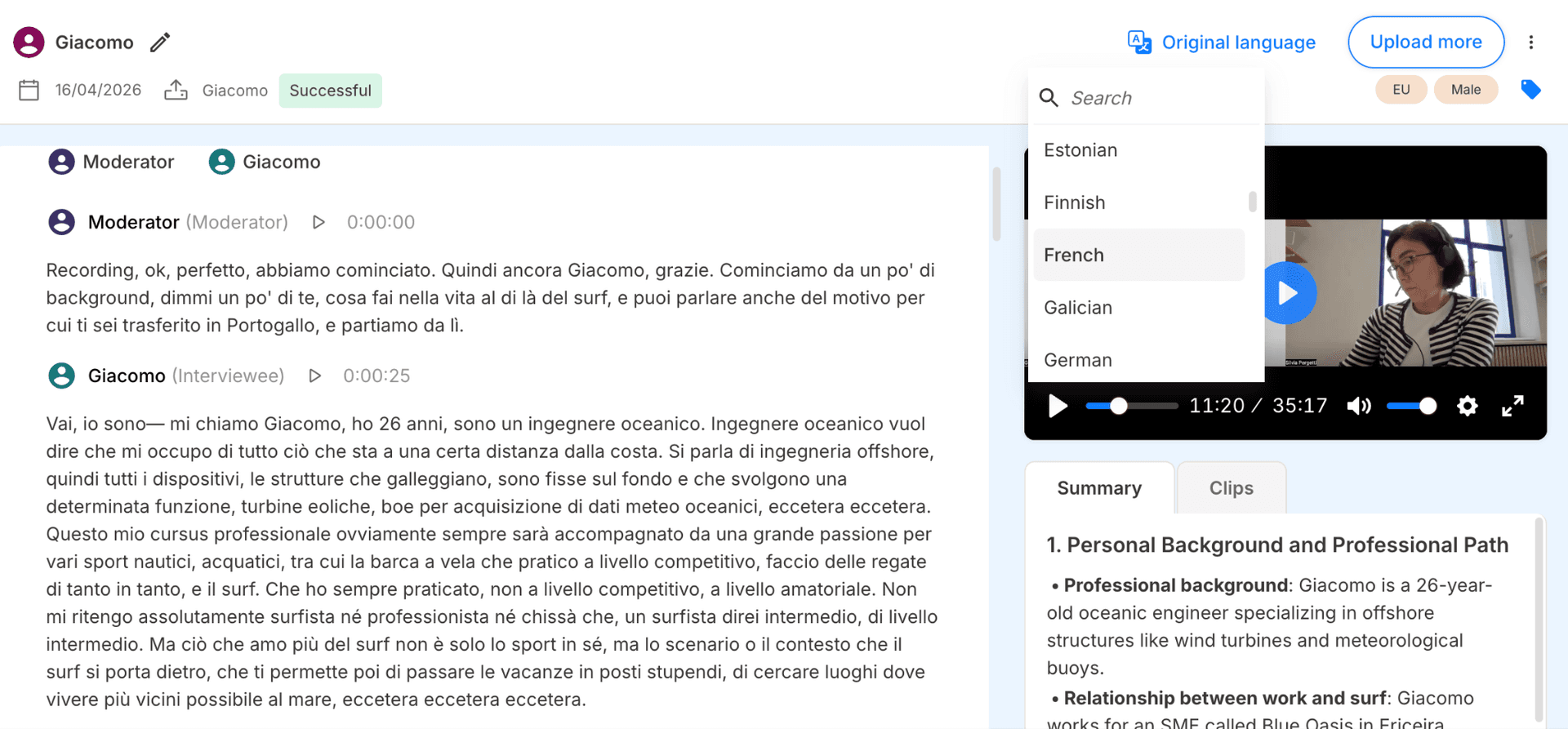
4. Translate the transcript
Work seamlessly across markets with the translation feature. Translate transcripts into 50+ languages in just a few clicks, and download both the original and translated versions — making it easy to collaborate and analyse research globally.
5. Upload additional materials
Enrich your research by adding supporting materials to each participant. Whether it's pre-tasks, notes, or supplementary files, you can upload and label them consistently to keep all relevant data organised in one place.
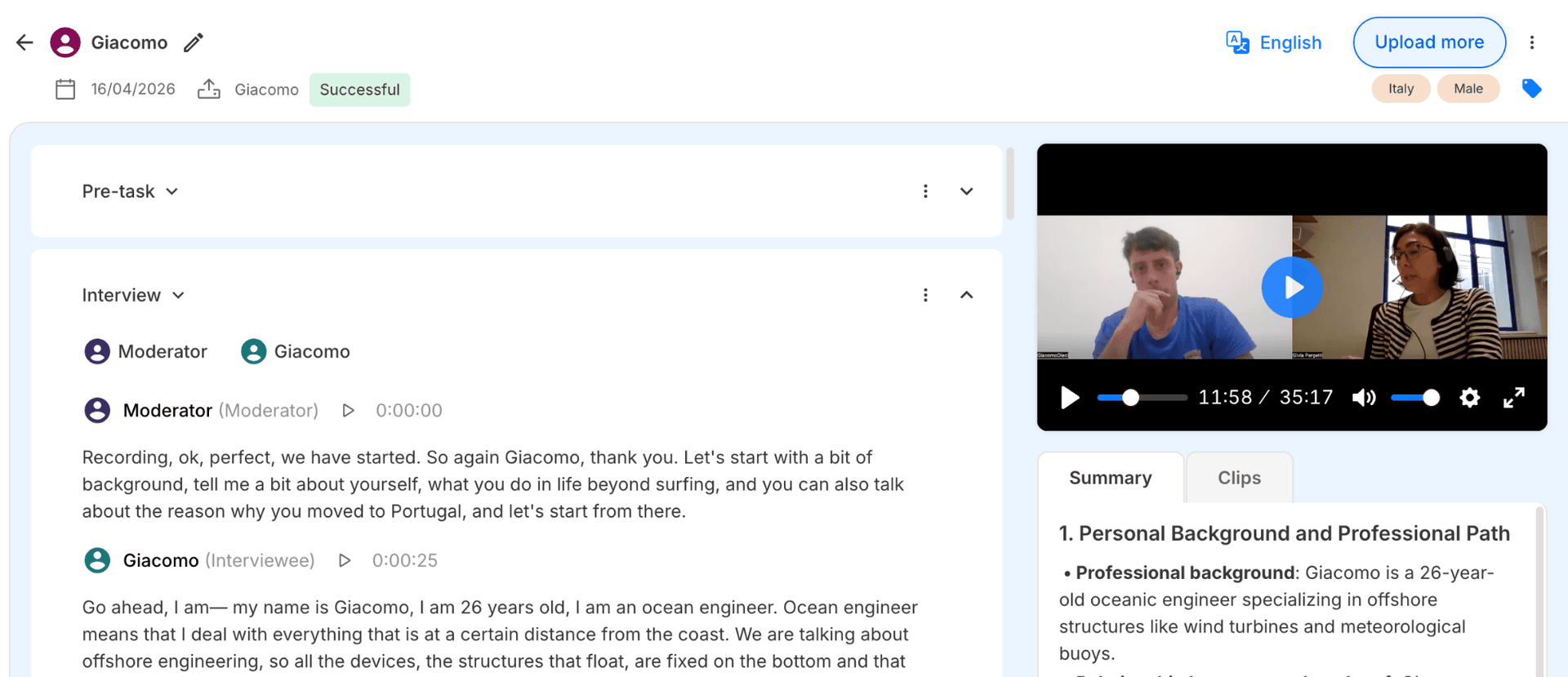
6. Add tags
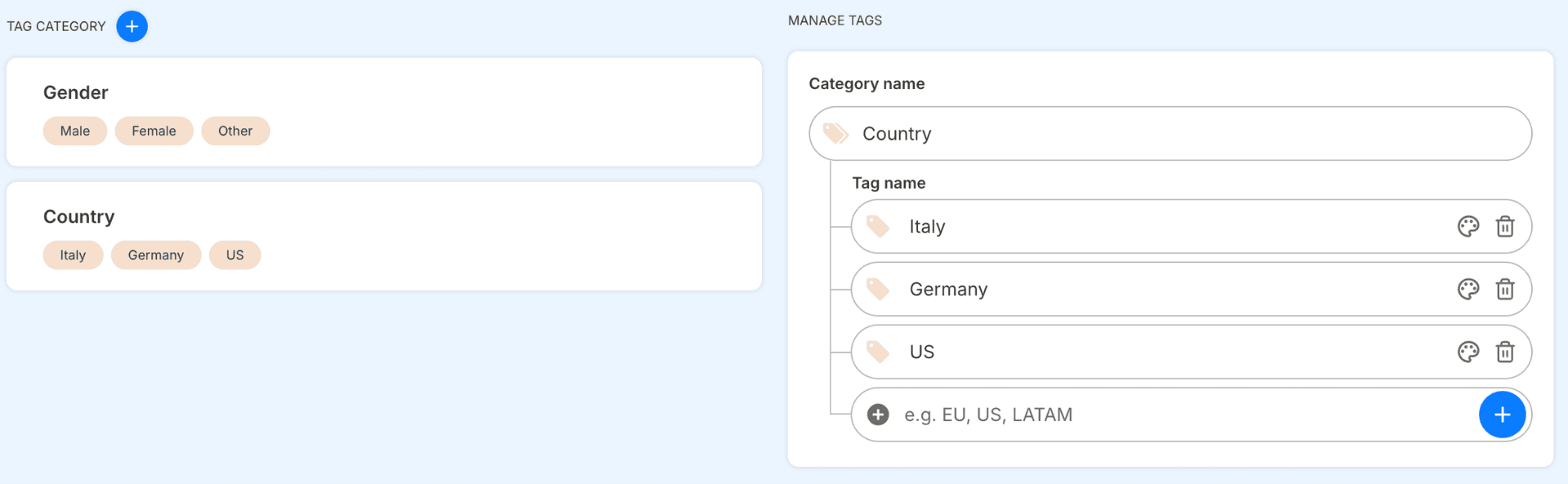
Use tags to organise your interviews for analysis. Create categories (for example, "Country") and add tags within each category (for example, Italy, Germany, US). Assign tags to respondents using the tag icon in the transcript view, helping you organise and segment your data for deeper insights.