Overview
Community research often generates a high volume of responses across multiple participants, tasks, and formats. In Quallie.Ai, community data can be uploaded in a few different ways depending on how that data was collected.
You can bring community data into Quallie.Ai by: • uploading it manually • importing it through an Excel template • exporting it from a provider such as Field Notes and uploading it to Quallie.Ai
This gives you flexibility whether you are setting up a project from scratch, migrating an existing study, or bringing in data collected through another platform.
1. Option 1: Upload manually
Manual upload is a good option when you want to create the structure of the project first and then add responses participant by participant.
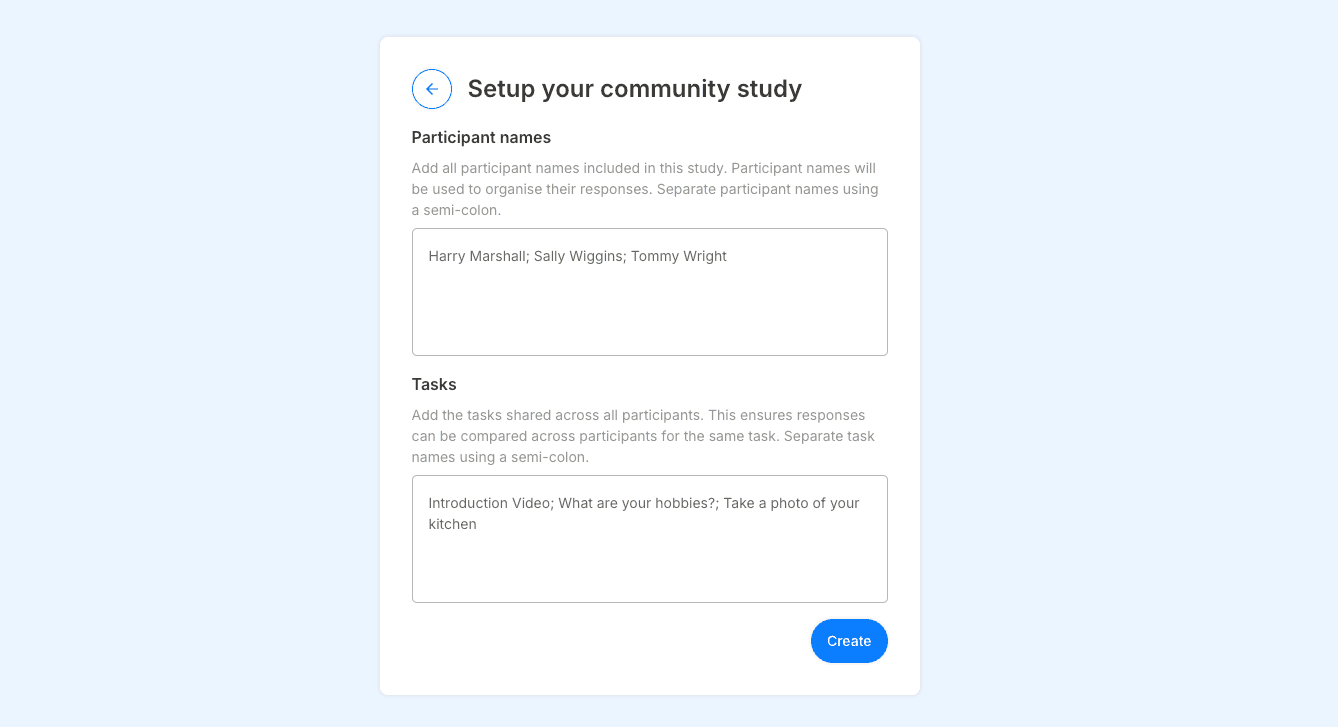
Start by creating a new project and selecting Community data, then choose Upload manually.
You'll first define the structure of the project by adding: • Participants: the people who took part in the study • Tasks: the questions, prompts, or activities they completed
When entering participants and tasks, list each item separated by a semicolon (;).
Once that structure is in place, you can open each participant individually and upload their entries there. Entries are the actual responses for each task, whether that is written input, recorded video, or other uploaded files.
This approach works well when you want more control over the setup or when responses need to be added manually after the project structure is created.
Steps 1. Create a new project 2. Select Community data 3. Choose Upload manually 4. Add your participant names, separated by ; 5. Add your tasks, questions, or activities, separated by ; 6. Open each participant 7. Upload the relevant entries for that participant
2. Option 2: Upload using the template
If you already have your community data prepared, uploading with the template is usually the fastest and most reliable option.
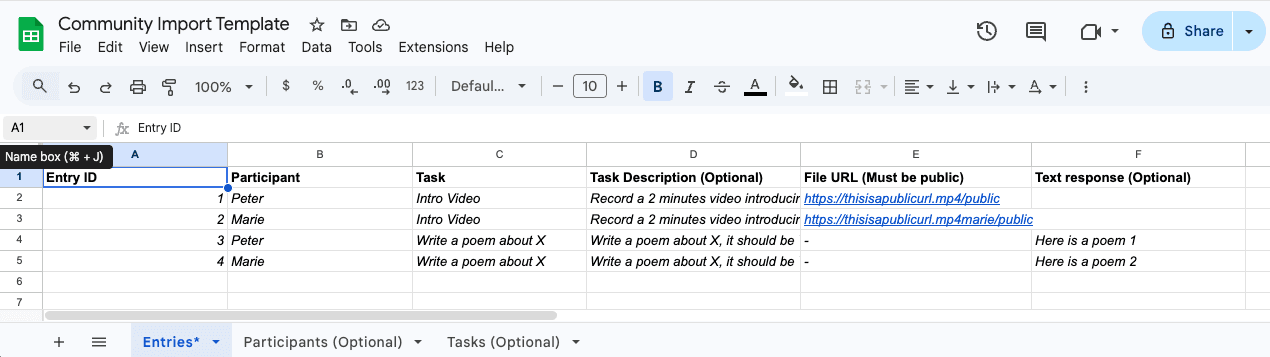
In Quallie.Ai, go to Community data and select Download template. This gives you a file you can fill in with the key parts of your study: • Participants • Tasks • Entries
Entries are the actual responses submitted by each participant for each task. These can include written responses or links to recorded video content, depending on how your study was run.
Once the template is complete, upload the file back into Quallie.Ai and your project data will be structured automatically.
Steps 1. Go to Community data 2. Select Download template 3. Fill in the template with: • participants • tasks • entries 4. Upload the completed file into Quallie.Ai
3. Option 3: Upload data from Field Notes
If your community study was run in Field Notes, you can export the data in a format designed for Quallie.Ai and upload it directly.
In Field Notes, select Go to Field Notes and export your study using Export data for Quallie.Ai. Then return to Quallie.Ai, open Community data, and upload the exported file.
This is a simple way to move community research from collection into analysis without needing to reformat everything manually.
Steps 1. Open your project in Field Notes 2. Select Export data for Quallie.Ai 3. Return to Quallie.Ai 4. Go to Community data 5. Upload the exported file